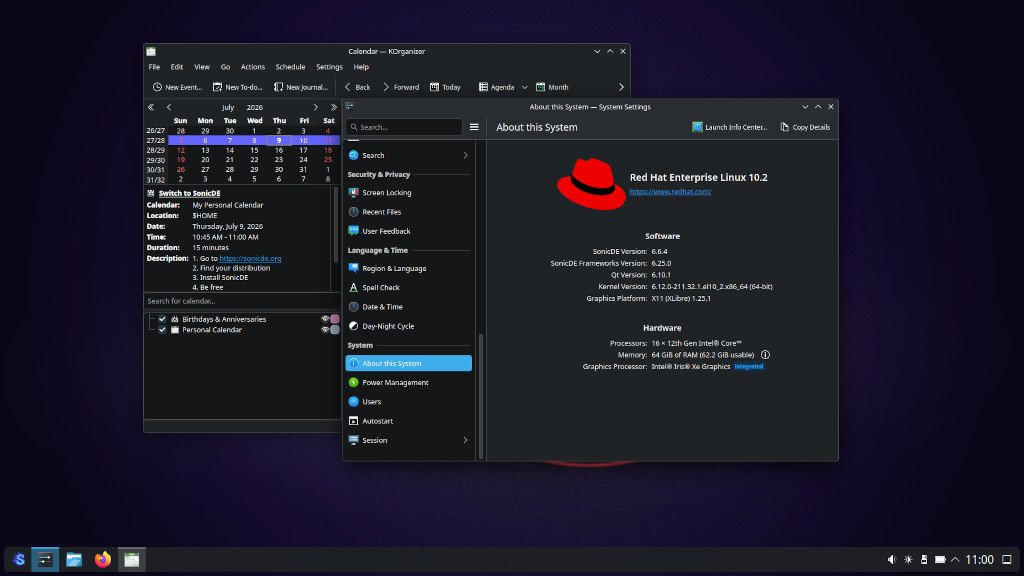
SonicDE for Enterprise Linux 10
This third-party repository provides SonicDE source and binary packages for Enterprise Linux-based distributions. SonicDE, or the Sonic Desktop Environment, aims to preserve and improve the X11-specific aspects of KDE. You can learn more about SonicDE at sonicde.org.
The packages of this repository are known to work with AlmaLinux and Red Hat Enterprise Linux (RHEL). They also should on Oracle Linux and Rocky Linux.
Installing SonicDE Manually
Choosing an X11 Display Server
Since EL10 doesn’t have any X11 server by default or in the official repos, you need to install one. We recommend using the XLibre X11 server. Follow the installation instructions on the XLibre for Fedora and EL GitHub page.
Installing KDE
When coming from the standard GNOME desktop, it’s beneficial to install KDE first before installing SonicDE. To do so, follow the Getting started with EPEL - Fedora Docs. Then install the “KDE Plasma Workspaces” group from the EPEL:
sudo dnf groupinstall "KDE Plasma Workspaces"
Enabling the SonicDE Copr Repository
[!warning] Beware that SonicDE has removed the Wayland parts, so the Wayland session may not work after installing it even though it is listed as an option in the display manager. You may not be able to start KDE Wayland anymore. Proceed at your own risk.
Add the SonicDE repository to your system:
sudo dnf config-manager --add-repo https://copr.fedorainfracloud.org/coprs/g/SonicDE/SonicDE-EL10/repo/rhel+epel-10/group_SonicDE-SonicDE-EL10-rhel+epel-10.repo
Installing SonicDE
When XLibre has been installed, you can install the SonicDE packages and other needed X11 packages by running this command:
sudo dnf install --allowerasing xorg-x11-xinit xkbcomp xinput xrandr \
    sonic-workspace sonic-workspace-libs sonic-workspace-common \
    sonic-workspace-x11 sonic-win sonic-desktop-interface \
    sonic-interface-libraries sonic-keybind-daemon \
    sonic-frameworks-windowsystem sonic-system-info sonic-screen \
    sonic-screen-library sonic-sysguard-library
As the GNOME Display Manager (GDM) has no X11 support compiled in, you need to switch to the Simple Desktop Display Manager (SDDM) from the EPEL repository or an X11-capable alternative:
sudo dnf install sddm
sudo systemctl enable --force sddm.service
Rebooting Your System
Now reboot your system. At the login screen choose “Plasma (X11)” as the session type. Log in with your credentials, start the program System Settings and verify that you’re running SonicDE on the “About this System” page. You do? Congratulations!
If your system only shows a blinking cursor after the reboot, switch to a text console via, e.g., Ctrl+Alt+F3, log in as your regular user and enter the following commands:
sudo dnf reinstall sddm
sudo systemctl restart sddm
Getting in Contact
Please report any enhancement requests or issues with this repository at Issues · sonicde-fedora-el/rpmspecs. In case you need help, want to report success or talk about other aspects, please also check the official SonicDE channels.
 Bluesky
  Discord
  Mastodon
  Matrix
  OFTC IRC
  Telegram
  X (Twitter)